Top

News 通知

2026.07.07

How to Use the "Product Order Panel ~animate order~" [Launching June 22, 2026]

How to Use the "Product Order Panel ~animate order~" [Launching June 22, 2026]

What is the “Product Order Panel ~animate order~”?

At our Omiya store, we offer back-catalog CDs through the Product Order Panel.
If you cannot find the CD you are looking for in the store, please feel free to use this product order panel.
If you have any questions, please ask a store staff member.

At our Omiya store, we offer older CDs through the product order panel.
If you cannot find the CD you are looking for in the store, please use this product order panel.
If you have any questions, please contact store staff.

At our Omiya store, you can search for and order back-catalog CDs through the product order panel.
If you cannot find the CD you are looking for in the store, please use this panel.
If you have any questions, please feel free to contact our store staff.

At the Omiya store, you can search for and order previously released CDs using the “Product Ordering Panel.”
If you cannot find the CD you are looking for in the store, please feel free to use this panel.
If you have any questions, please ask a store staff member.


How to Use the “Product Order Panel ~animate order~”

①Tap the home screen!
①Tap the Home Screen!
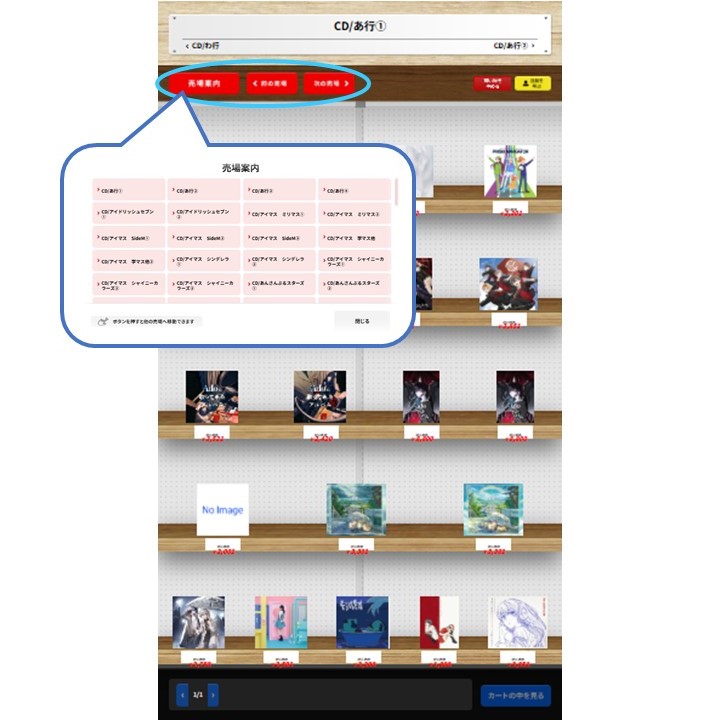
② Search for Products (Sorted by Japanese syllabary order [A–Wa] and series, etc.)
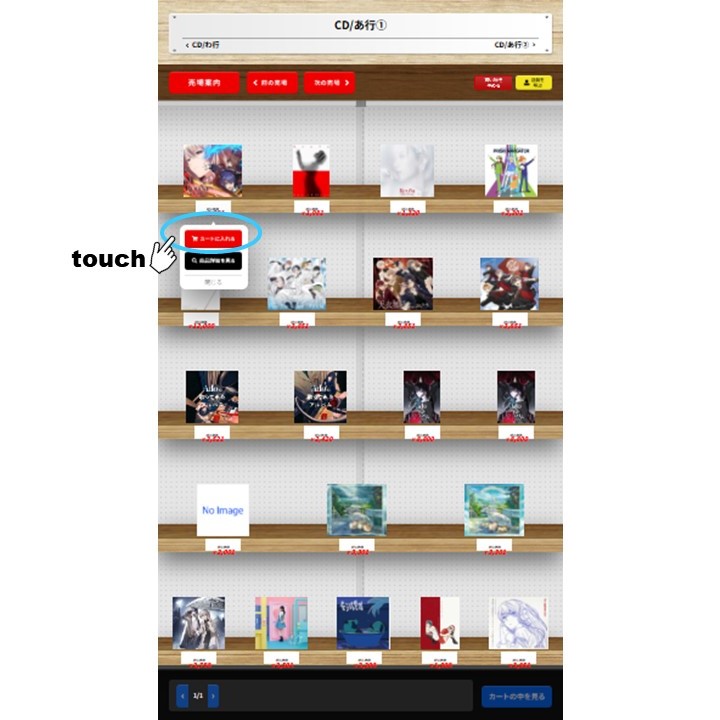
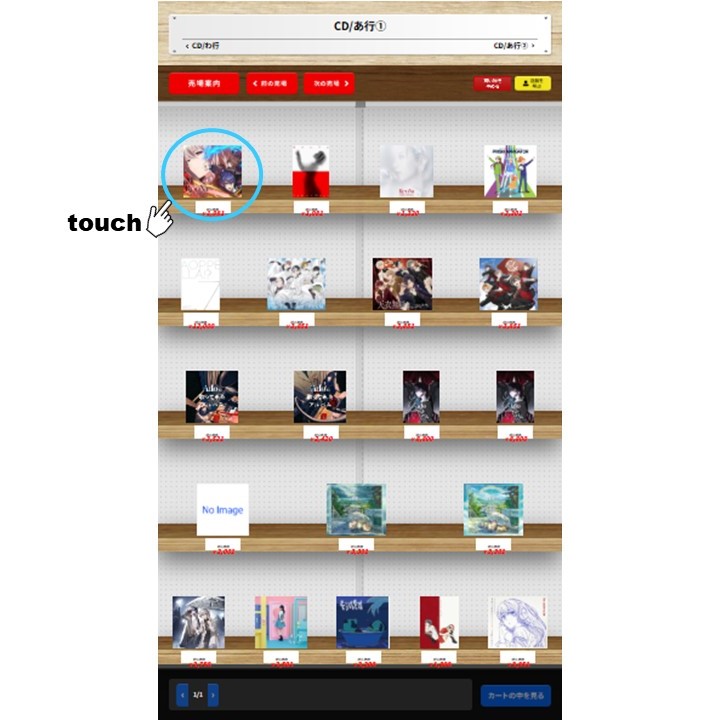
③ Once you find the product, tap the product image!
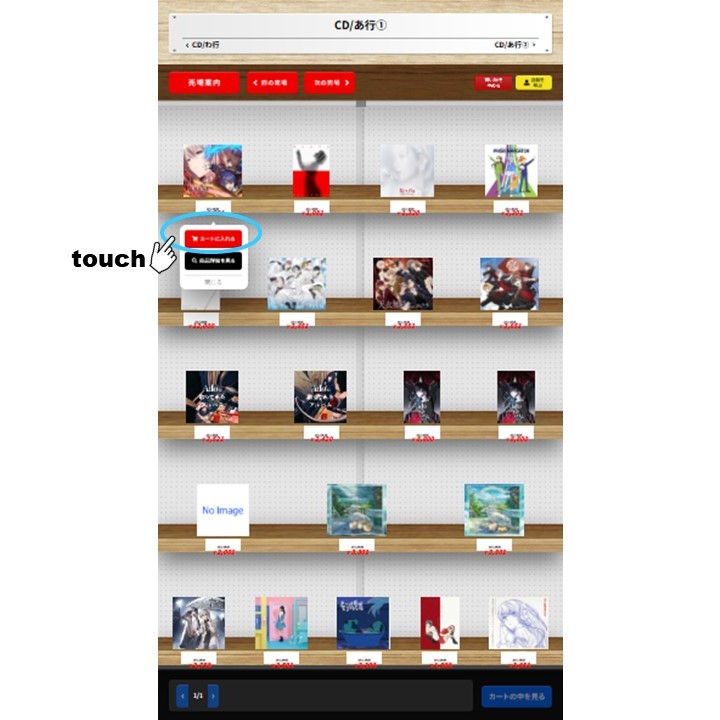
④ Tap 'Add to Cart' !
④ Tap “Add to Cart”!
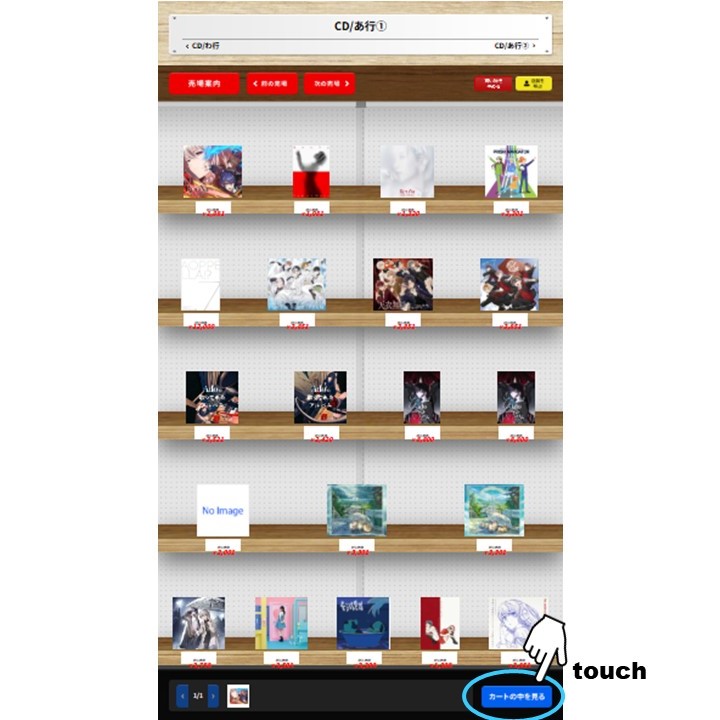
⑤ Check if the item is in the cart
⑥ Tap ‘View Cart’!
⑥ Tap “View Cart”!
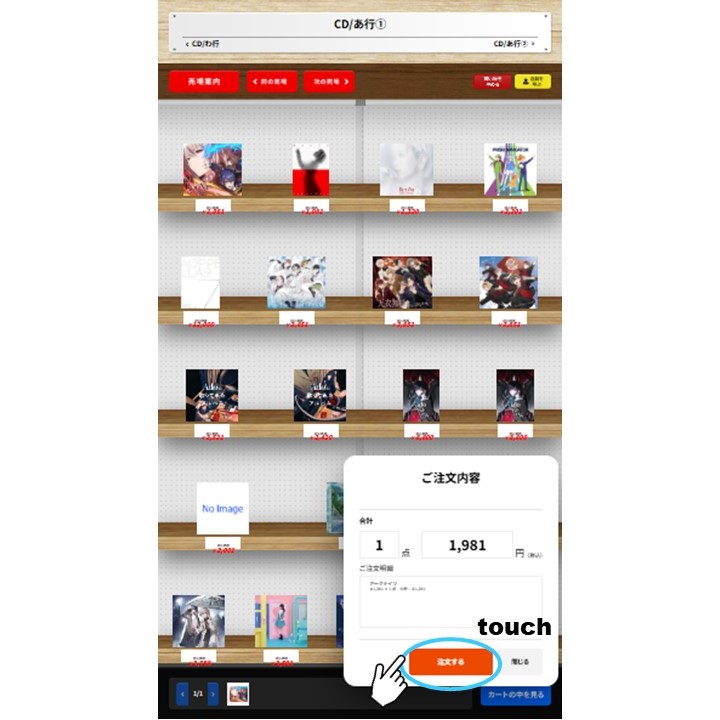
⑦ Once you’ve confirmed that the items you’ve selected are in your cart, tap ‘Place Order’!
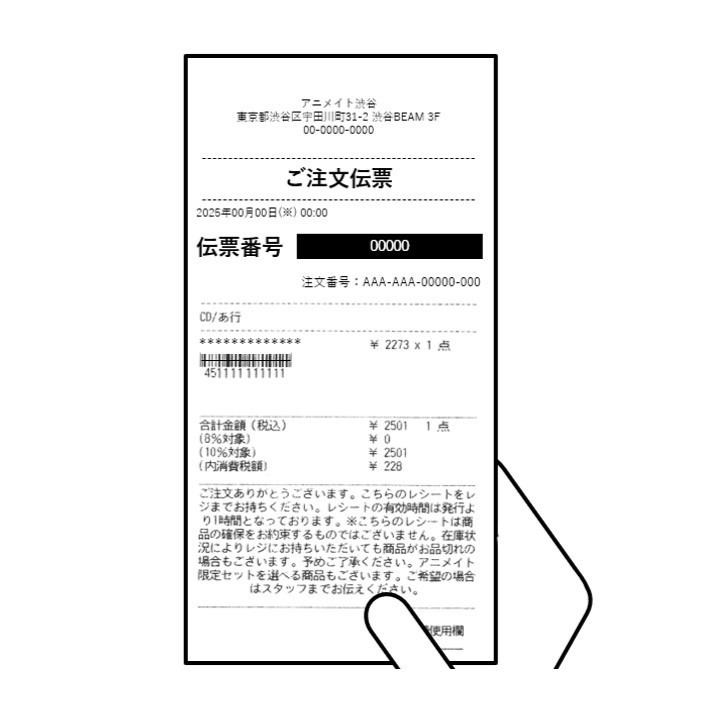
⑧ Please take the receipt that appears to the register
⑧ Please take the receipt you just received to the register

———

How to use “Product order panel ~animate order~”

①Tap the
①Tap the "Search for Old CDs" button to begin!
② Search for products (By Japanese alphabet
② Search for products (By Japanese alphabet "A" through "Wa" (あ~わ), by series, etc.)
③ When you find the product, tap the product image!
④Tap “Add to Cart”!
④Tap “Add to Cart”!
⑤ Check if the product is in the cart.
⑥Tap ‘View Cart’!
⑥Tap “View Cart”!
⑦Once you have confirmed that the selected item is in your cart, tap
⑦Once you have confirmed that the selected item is in your cart, tap "Order (Order)"!
⑧Please take the receipt you received to the cashier.

— — —

How to Use the “Product Order Panel ~animate order~”

① Click 'Search for Previously Released CDs (Find Back Catalog CDs)'
① Click “Search for Previously Released CDs (Find Back Catalog CDs)”
② Search for Products (You can search using the Japanese syllabary A-W (あ〜わ), series, etc.)
② Search for Products (You can search using the Japanese syllabary A-W (あ〜わ), product lines, etc.)
③ Once you find the product, just click on the product image!
④ Click 'Add to Cart'!
④ Click “Add to Cart”!
⑤ Check if the item is in the shopping cart
 ⑥ Click “View Cart (View Cart)”!
⑥ Click “View Cart (View Cart Contents)”!
⑦After confirming that your shopping cart contains the selected items, click 'Order'!
⑧ Please take the receipt you received to the cash register

———

How to Use the "Product Order Panel ~animate order~"

① Click 'Search for Previously Released CDs'
① Click “Search for Previously Released CDs”
② Search for products (You can search using the Japanese kana A-W (あ〜わ), product lines, etc.)
③ Once you find the product, just click on the product image!
④ Click 'Add to Cart'!
⑤ Check if the item is in the shopping cart
⑥ Click 'View Cart'!
⑥ Click “View Cart (View What’s in Your Cart)”!
⑦ After confirming the items in your shopping cart, click 'Order'!
⑦ After confirming the items in your cart, click “Place Order”!
⑧ Please take the receipt you received to the cash register.
  • Recruitment Information
  • animate Exclusive Selection
  • CLUB animate Survey
  • animate Times
  • Store Guide
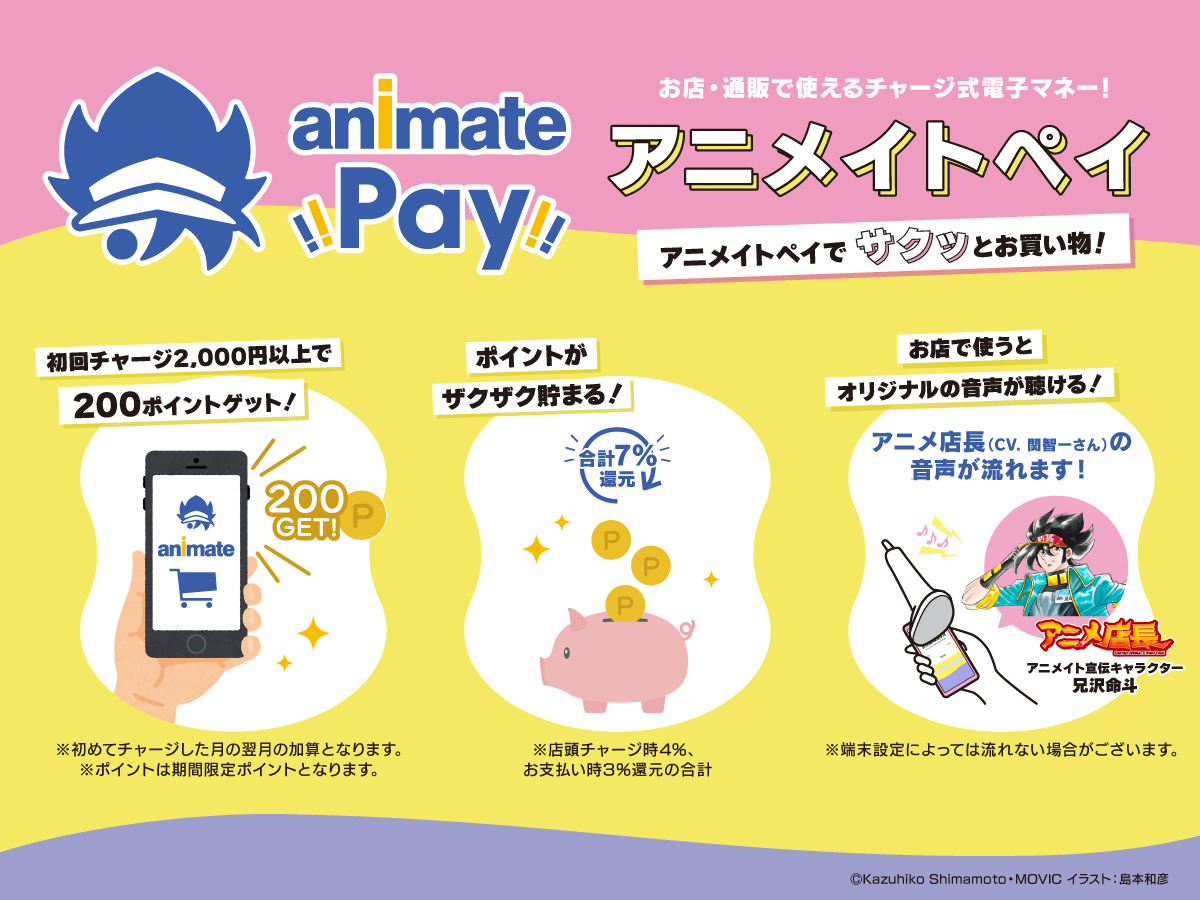
  • animate Pay
Home Products Cart Me